| Support Category: LMS Navigation |
| Specialist Notes: |
IMPORTANT! 1. 2025-2026 Central Staff Compliance Training 2. 2025-2026 Campus Staff Compliance Training This response includes navigational instructions to locate and launch all courses. While this is a canned response, kindly try your best to send the instructions in phases, instead of providing them with all 10 steps at once. Please tweak this response as needed! |
HOW SHOULD WE ASSIST? Please DO NOT provide the internal guides to users! This information was gathered after testing, which makes the guides longer. They highlight the differences and provide detailed information. You may download images, copy and paste verbiage (remember to tweak as needed) from the document to formulate your instructions for users. - 2025 Internal Guide_Course Overview_Locate, Layout and Launch - 2025 Internal Guide_General Course Navigation and Completion All courses are videos except for the “Section 504 - A General Overview” and the “Policy Acknowledgment”. More details about these specific courses can be found in the guides below: - 2025 Internal Guide_Section 504 - A General Overview - 2025 Internal Guide_Policy Acknowledgment You can proxy, but be very careful to avoid progressing or accidentally completing the course. |
| Canned Response Code: /DISD01 |
| Standard Response: |
To locate and launch your training, please follow the steps below:
1. Hover over the “My Learning” tab and select “View Your Transcript”.
2. To locate the training, scroll down your list of training or enter the title within the “Search by Keyword” box.
3. Once you’ve located the training, select the “Open Curriculum” button on the right.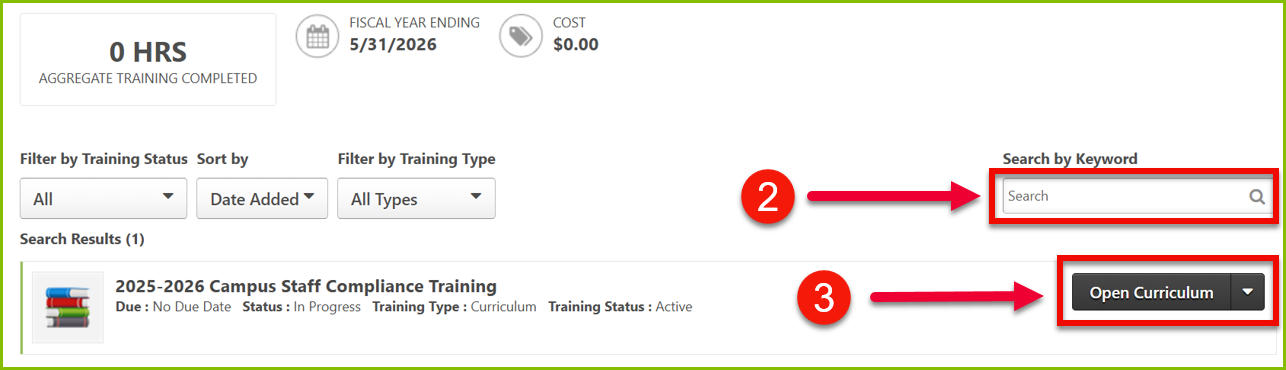
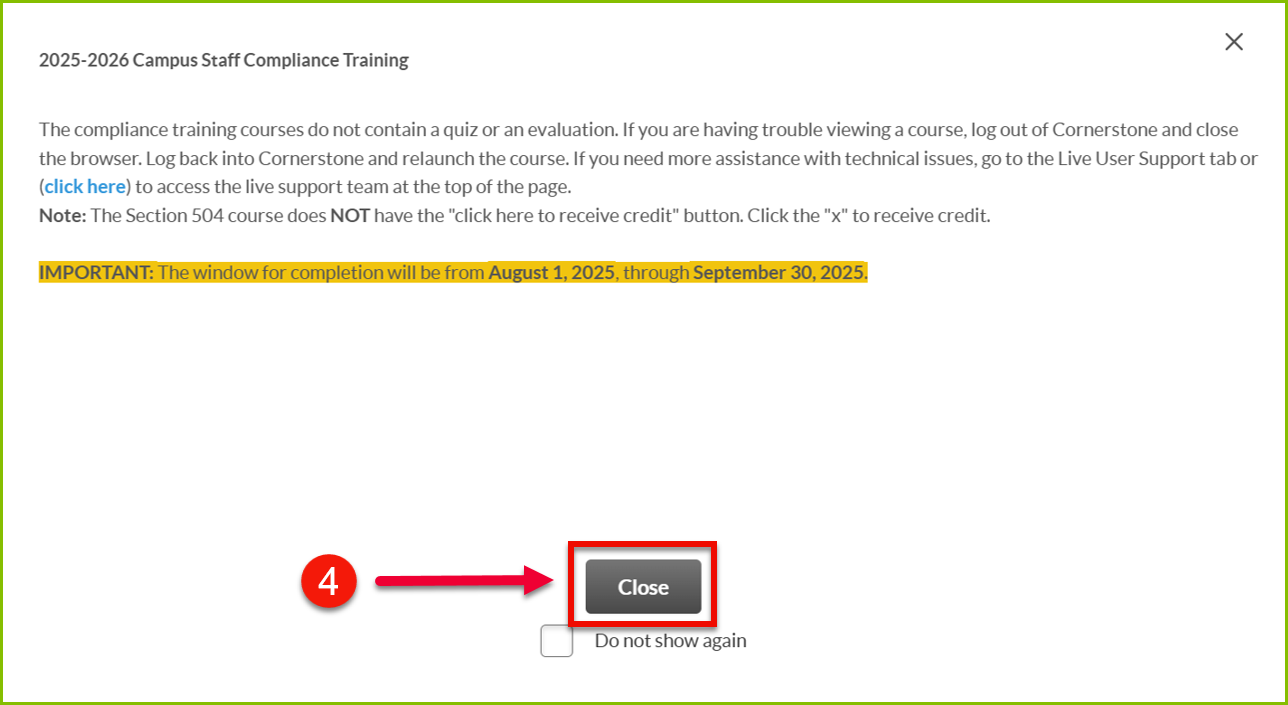
4. You’ll be prompted with a message; see image below. Click the “Close” button to navigate to the curriculum.
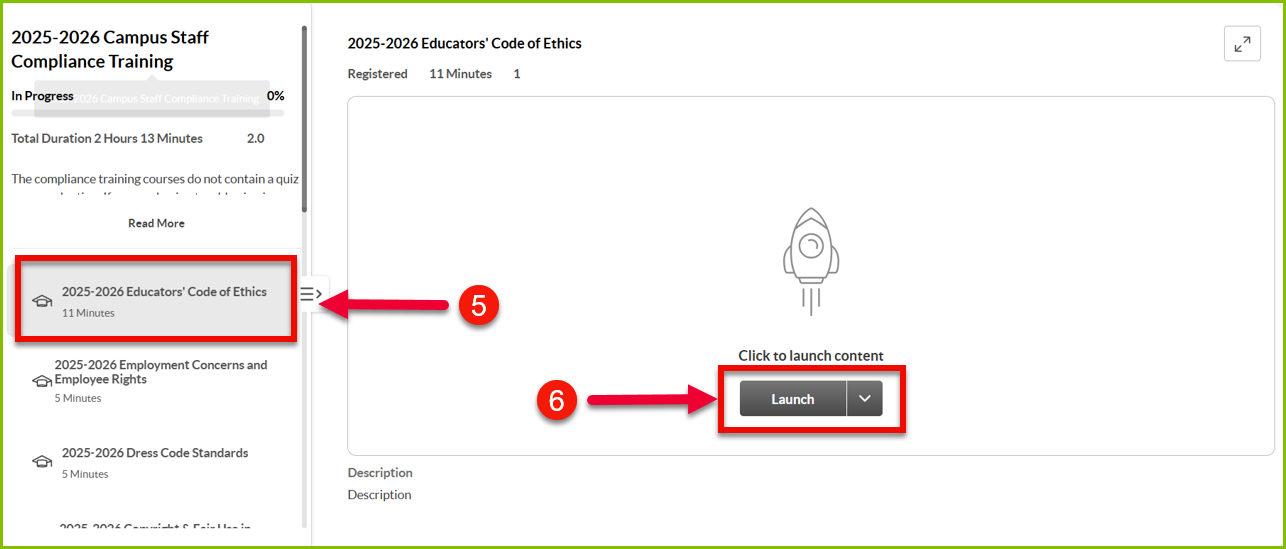
5. Courses will be displayed on the left side of the training screen. Scroll down and select the training to launch.
6. Click “Launch” to open the content.
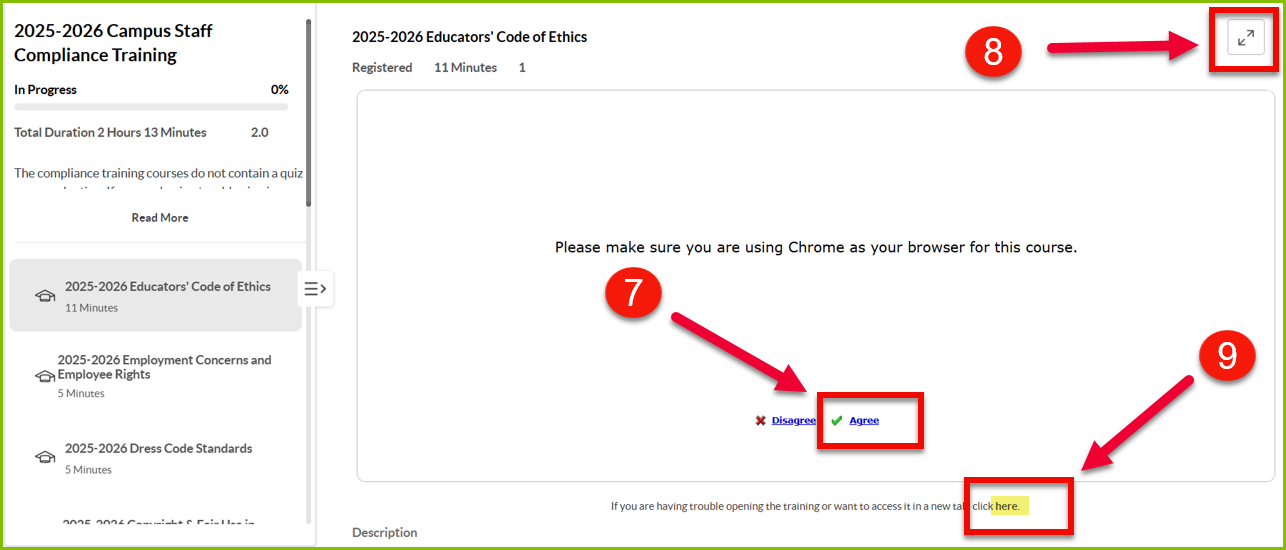
7. After clicking the launch button, you will be prompted to ensure you’re using Google Chrome – click “Agree”.
8. To maximize the screen within the same course window, click the “full-screen” button.
9. To open the course in a new tab, you can select “click here” at the bottom.
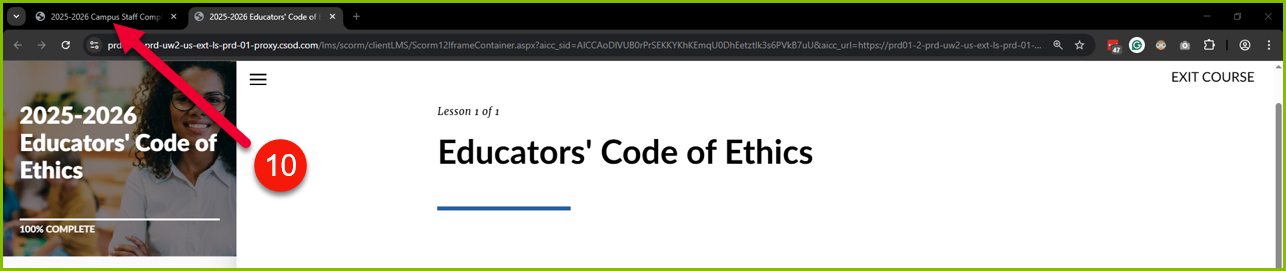
10. While you exit the launch page, the tab remains open. To return to the curriculum, click the tab that displays the title of the curriculum.